Browsing "Older Posts"

Browsing Category "Chrome"
I'm a big fan of documentaries and other factual television  (I may list my favorite documentaries you can watch online in a future post).For me some of the best documentaries are produced from BBC and PBS Nova but that has always caused me problems.As I'm in Ireland both the BBC iPlayer and Nova videos are restricted, The iPlayer is UK only and Nova is USA only as are many streaming sports etc...

Now were there is a will there is a way and I have used a number of techniques to bypass these restrictions using what's called a proxy.But this can be haphazard at the best of times.But lately I have been using a browser add on and it couldn't be easier or better !

The ad-on is from Hola called Hola Better Internet on Chrome and there is also an ad-on for Firefox users as well as Mac, Mobile amd more.Simply download the add-on to your browser and when needed it will jump into action cloaking your location so you can watch the video or stream.

Watch Country Restricted Video Including BBC iPlayer From Anywhere Instantly

By Paul Crowe → Monday, December 22, 2014
Licence Plates Spell Private
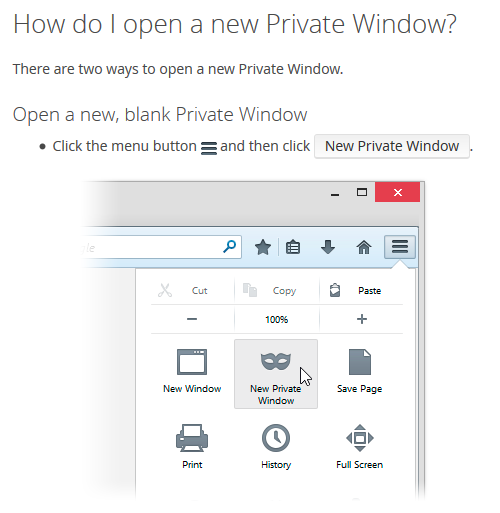
Ever want to do some private browsing ? There are times we want to browse some web pages but not be tracked and have it stored in our history.Maybe your at work or maybe your looking up some gift ideas you don't want your partner to see (We all know the other reasons :) ).The Incognito window is great for this, you can open a window that will not be tracked in your browser history.

Below I have instructions to open private browsing windows on the three main browsers.

Chrome


The quickest way to get your Incognito window in Chrome is simply by clicking the following keys :

CTRL + SHIFT + N

Firefox


Private window on firefox browser

Internet Explorer


Internet Explorer call it "In Private Browsing" and the quickest way to open the private window in IE is by clicking the following keys :

CTRL + SHIFT + P

Now you can quickly browse privately on your favorite browser.

Quickest Way To Open An Incognito Or Private Browser Window

By Paul Crowe → Wednesday, September 3, 2014
There have been a few times I have popped up a playlist on YouTube only to discover it's set to play backwards.This always happens on auto populated YouTube playlists which is very frustrating.Even more frustrating is the fact we have no option on YouTube to reverse a playlist and make it play from back to front.In this post I have however a fix that will allow you to reverse the order any playlist on YouTube is played.

This fix I'm afraid has a few limitations, well one limitation really and that's that it will only work on the Google Chrome browser. Not too much of an inconvenience Chrome is a great browser and can be quickly downloaded.

How To Invert A YouTube Playlist


1. Follow this link to the Reverse YouTube Playlist Page in the Chrome Store.

2. Click the download button in the top right to install.

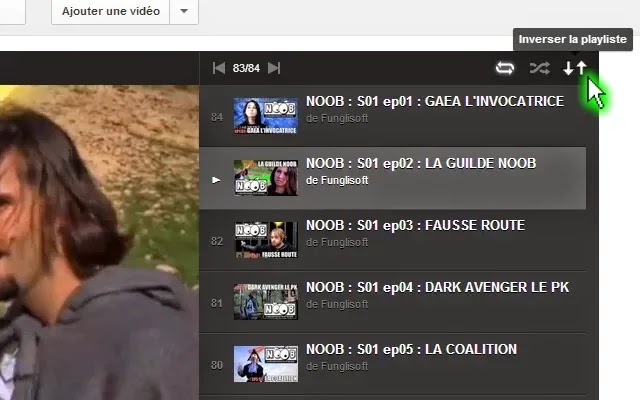
3. Now when you open a playlist in YouTube you will see two arrows in the top right beside the autoplay and random buttons.Click the arrows to reverse the order.


A great add-on for Chrome although it is a pity YouTube have not built in this option for this especially with all auto populated playlists playing from back to front.Let us know what you think in the comments.

How To Reverse A YouTube Playlist

By Paul Crowe → Tuesday, September 2, 2014